
We’re sorry to see you go! Here’s how to fully uninstall CustomPix from your Shopify store.
🔧 Step-by-Step Uninstallation
-
Log into your Shopify Admin
Go to your store’s admin at your-store.myshopify.com/admin -
Navigate to “Apps”
Click on Apps in the left-hand menu -
Find “CustomPix”
In the list of installed apps, locate CustomPix -
Click “Remove”
Click the trash can icon or “Remove” button next to the app
🧹 What Happens After Uninstalling?
- Your app settings and catalog configurations stored on our servers, including the store owner email associated with your account, will be automatically deleted within 30 days.
- Some Shopify metafields (e.g. image assignments) may remain in your product data. These are harmless and can be removed manually via the Shopify admin or API.
- If you manually delete a catalog within the app before uninstalling, all related data for that catalog is immediately and permanently deleted.
We do not sell or share your data, and all app-related data is deleted from our systems within 30 days of uninstalling. See our Privacy Policy for full details on what we collect and how long it’s retained.
🔄 How to Delete Feeds & Catalogs in Meta Commerce Manager
If you need to remove a feed or catalog from Meta Commerce Manager, follow these quick guides:
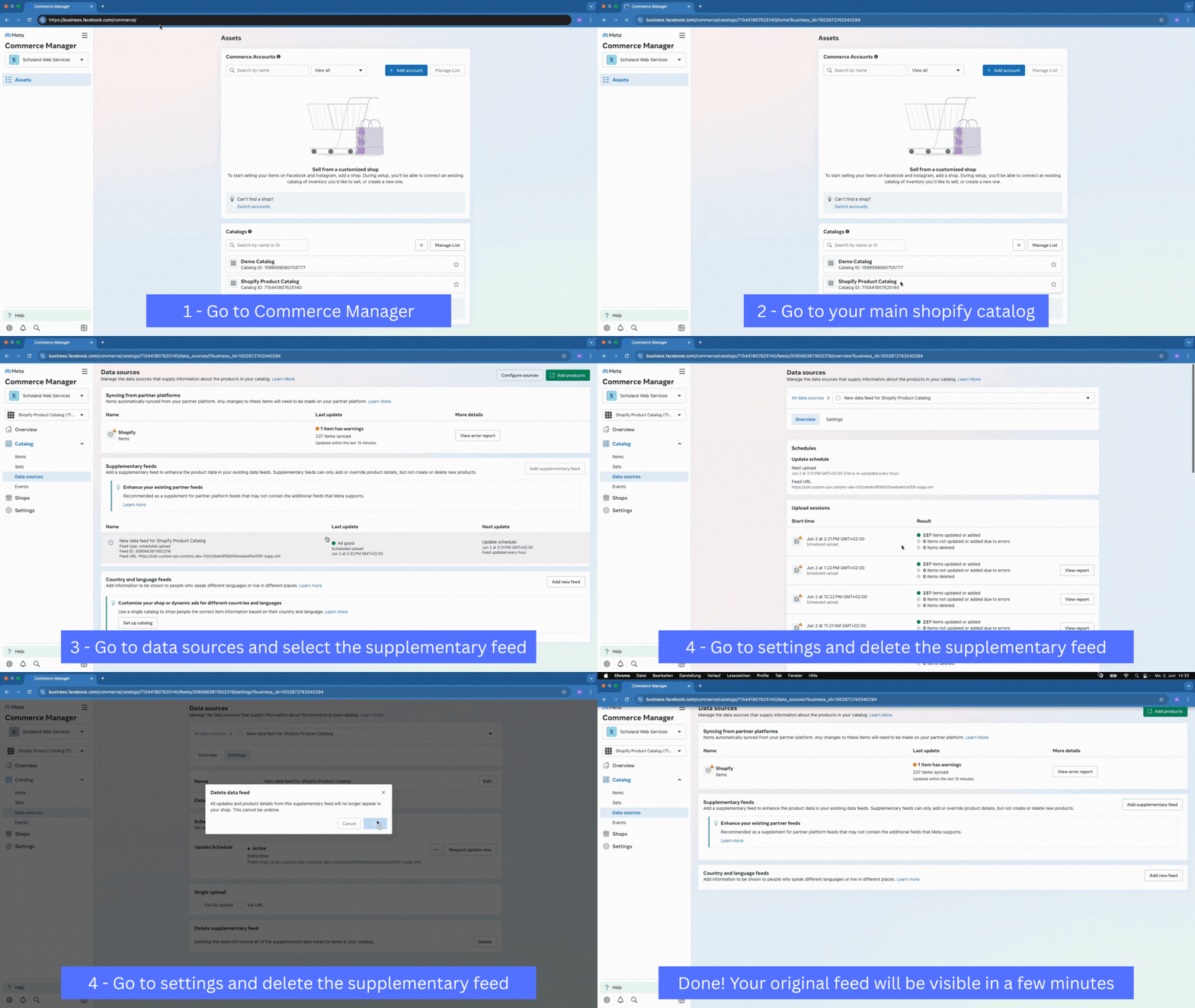
🗑️ Delete a Supplementary Feed
Watch this short GIF to learn how to delete a supplementary feed from your Meta Commerce Manager:
- Go to Meta Commerce Manager.
- Select the catalog you want to manage.
- Click Data Sources in the left-hand menu.
- Choose Data Feeds.
- Click on the supplementary feed you want to delete.
- Go to the Settings Tab.
- Select Delete.
- Confirm deletion in the popup window.
🗂️ Delete a Catalog
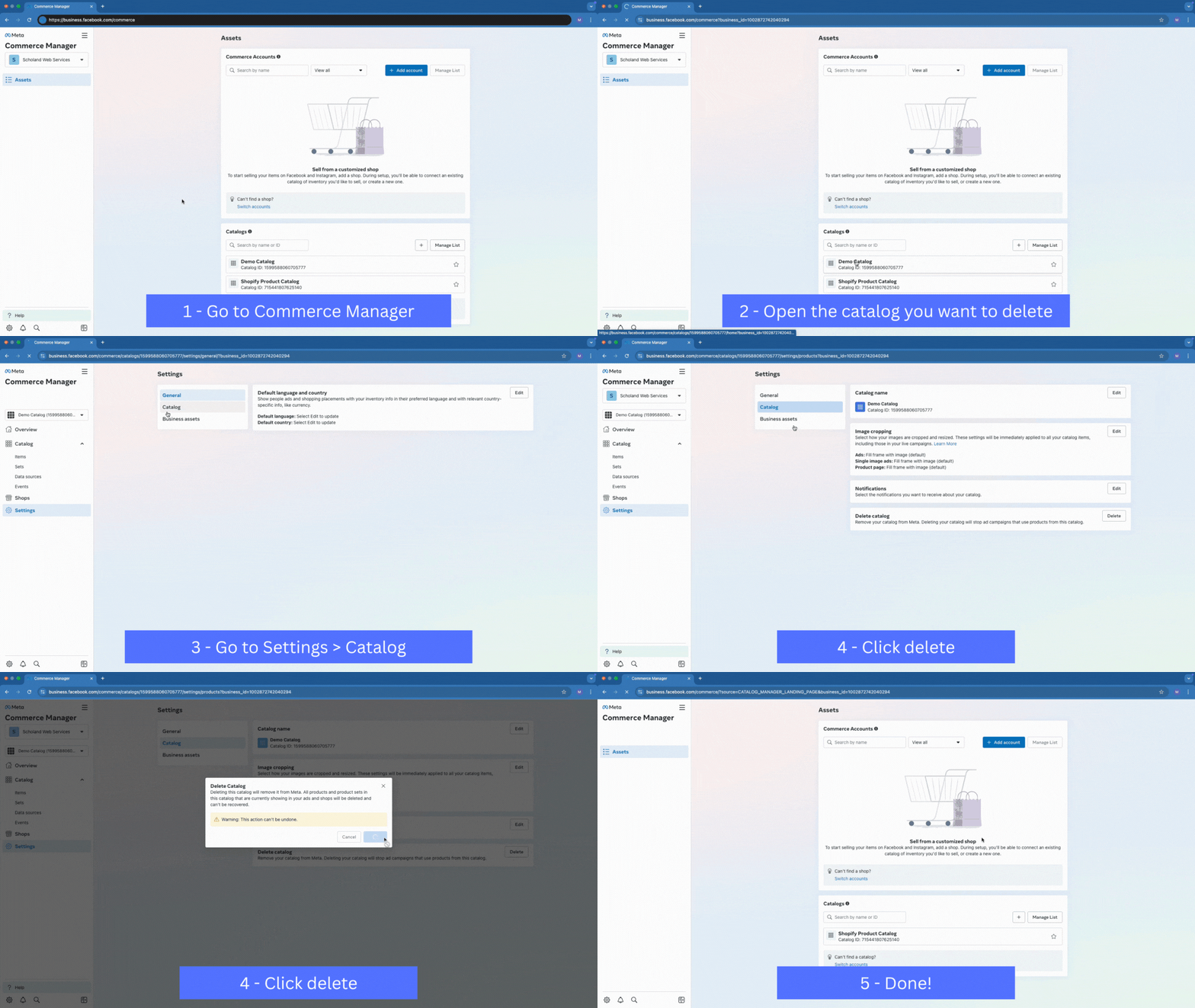
Here’s how you can delete an entire catalog from Meta Commerce Manager:
- Visit Meta Commerce Manager.
- In the Catalogs section on the main dashboard, locate the catalog you want to delete.
- Click the gear icon ⚙️ and go to Settings > Catalog
- In the settings panel click Delete Catalog.
- Confirm the deletion in the popup that appears.
💬 Need Help?
If you’d like help removing CustomPix-related data or want to give feedback, just contact us at:
We’re happy to assist!